1
Before you start
What AdMaster is, and what it is not
AdMaster is traffic and billing software. It schedules the commercials in your breaks, creates your proposals, contracts and invoices, and works together with the playout you already have.
You enter campaigns. AdMaster places every spot in a break, writes the traffic log in the format your playout reads and checks what aired. The AdMaster Desktop Client app delivers traffic logs and spots to your playout automatically, or you deliver them yourself.
AdMaster creates invoices from your campaigns, and you can edit any invoice. It is not a CRM, not accounting software and not a platform for digital ads. It schedules, delivers and checks only what goes on air, and you can invoice anything else manually, such as spot production or a web package.
Who should work in AdMaster
The person who knows your advertisers, not your technician.
Campaigns, breaks and invoices are sales and office work. Give AdMaster to the person who talks to advertisers or enters their orders today. You need a technician only once, when you connect AdMaster to your playout. That takes about 15 minutes, and after that, the everyday work needs no technician at all.
Every station licence includes unlimited users, so each person on your team gets a personal login. No one to schedule your traffic? Our team at IT4RADIO does it for you in AdMaster.
Where to start
The order of steps that works best, from the first video to the first traffic log in your playout, is in the getting started guide.
Open the getting started guide2
The five rules
Most questions we get about a schedule come back to one of these five rules. Keep them in mind, and AdMaster does what you expect.
1
You build the frame, AdMaster paints the picture
Your job is the frame of each campaign: dates, hours, plays, spots and positions such as first in the break. Placing every spot inside that frame is the job of AdMaster. It keeps breaks the same length, treats every advertiser the same and keeps competing spots apart. Move a spot by hand only in the most extreme cases, when no setting can do it.
2
Your settings are never up for negotiation
AdMaster follows every setting you make as a firm rule. A spot set for 7:00 to 9:00 AM never moves to 10:00, even when every break before 10 is full and every break at 10 is empty.
3
Don't judge a schedule with three campaigns
Four or five campaigns are not enough to see how the algorithm works. If you have only a few paid campaigns, let AdMaster place them, and don't move them around so the breaks look fuller. Don't be the restaurant owner who keeps moving four tables around a huge empty room, so it looks full.
4
Math can't be tricked
With two breaks an hour, six plays in two hours means the spot repeats in some breaks. No setting changes that. When a schedule looks wrong, count the breaks and the plays first.
5
AdMaster does not edit your spot files
AdMaster uses the files you upload exactly as they are. It does not change their loudness, cut or join them, or change their metadata. Prepare your spots before you upload them.
3
How the algorithm thinks
It follows your rules, word for word
Think of AdMaster as a very smart and very literal assistant.
It does exactly what each campaign says. It never bends a rule to make the schedule look nicer. It can't know how demanding your client is, so it assumes you had a good reason for every rule.
Example
Your hour has two breaks, and a spot must play three times in that hour. There are only four ways to share the three plays between the two breaks: three in the first and none in the second, none in the first and three in the second, two and one, or one and two. Unless you choose the breaks by hand, AdMaster picks the best of the four each time, but the spot must play twice in one break. Your rule allows nothing else.
It plans everything again, after every change
When you add or change any campaign, AdMaster plans the schedule again, for all campaigns.
AdMaster does not drop a new spot at the bottom of a break, as some other traffic tools silently do. It looks at all active campaigns together and picks the combination that works best for every advertiser. So the advertiser who came first does not keep the first-class seat forever, while every new campaign gets a seat next to the lavatory. A new campaign finds room wherever there is room, and no one spends hours fixing breaks by hand.
However small your change is, AdMaster creates the schedule of all campaigns again. Even when you stop one tiny campaign that runs for only a few hours.
It keeps competitors apart
Spots that should not meet stay apart, as far as your breaks allow.
AdMaster keeps apart the same spot, the same campaign, the same customer, competing campaigns, spots from the same business category and spots read by the same voice. It does this on its own whenever there are enough breaks and positions. You can also pick any active campaigns to keep apart, even from different business categories.
The rules in Settings, under Scheduling Safeguards, decide what happens when there is not enough room. For example, whether the same spot may ever play twice in one break. If competitors must share a break and you allow it, AdMaster still keeps them apart inside the break whenever possible.
Every fixed position costs all other advertisers
Each spot with a fixed position in the break takes room away from the algorithm, and every other campaign in that break pays for it.
The math
Ten spots in one break can be arranged in 3,628,800 different combinations. Fix the position of five of them, and only 120 combinations are left. That is less than 0.01% of what the algorithm had to choose from. Decide for yourself if that loss in the quality of your whole schedule is worth a 20% surcharge on a few campaigns.
Even one fixed spot counts. In a break with 6 spots, one spot fixed first in the break cuts the combinations from 720 to 120. Five out of six are gone, 83% of what the algorithm could do in that break.
So don't give a spot first in the break for cosmetic reasons, or as a favor to an advertiser who has become a friend. Fix positions only when the advertiser pays for them, and price them accordingly. Common sense says that one campaign priced 10 or 20% higher is not enough to pay for a loss that, as you just saw, can be more than 99% of the options the algorithm has to build your schedule.
The butterfly effect: one campaign changes all the others
When something in the schedule looks odd, the cause is often a campaign you are not looking at.
Example
Your hour has two breaks. Car dealer A is in the first break, furniture store B in the second. Now car dealer C needs a spot in the same hour, and AdMaster would normally put it in the second break, away from A.
But supermarket D also needs that hour, with a 60-second spot. To keep both breaks close to the same length, AdMaster may put C in the first break, next to A.
The conflict between A and C was caused by D, a campaign that has nothing to do with cars.
A processor can check hundreds of thousands of combinations in one second, and no one can see the whole picture the way the algorithm does. So when you don't like a schedule and decide to move a spot by hand, look at all the campaigns in those hours first, and check that the move did not cause a bigger problem in the break where the spot lands. AdMaster won't warn you: it trusts that you have a strong reason, backed by your contract or agreement with the advertiser.
Spot groups
A spot group is a set of spots from the same campaign that AdMaster always schedules together, in one commercial break, when the advertiser asks for it.
A spot group has one leading spot and one or more reminder spots. AdMaster schedules all of them in the same break, in one of three ways: the leading spot early in the break and the reminders later (the default), all spots one after the other, or exactly one spot of another campaign between the leading spot and the reminder.
Leave the default whenever you can: it gives AdMaster the most room to keep every break balanced.
Top-ups have one job: the right break length
Top-ups fill a break to the length you need. You can't schedule them, and you can't count them.
Top-ups make sense only when you keep a station in sync with another station, or with programs made by someone else. In every other case, they are like putting fuel tanks on the empty seats of a plane so the cabin looks fuller. And it then requires more fuel to carry fuel.
Each break has its own top-ups: your own files, such as station promos, and active spots that are allowed to top up. A spot may top up only when its Top-up box is ticked for that station, and only in the days and hours of its campaign. AdMaster decides what to use, break length first, and still keeps the same and competing spots apart.
That is why a top-up can't be planned as twice a day. You can give an advertiser free bonus plays when there is free space, but any set number of plays needs a regular campaign segment, with all its settings.
How to: a spot only as a top-up
Want a spot that only tops up breaks and never airs as a paid play? Give its campaign a segment with 0 plays, in the hours where it may top up. You can also mix the two: paid plays in the morning, and in the afternoon a segment with 0 plays, where the spot only tops up.
4
Campaigns and segments
What is a segment?
A segment is one part of a campaign, with its own rules. Every campaign has at least one, and a manual schedule always has exactly one.
A segment says when and how the spots play: the dates, the days of the week, the hours, the number of plays and which spots. It also holds the position in the break and the price, per play, per second, per day, per week, per month or as a flat price.
Plays are set per day or for the whole segment, such as a week, a weekend, a month or any dates you choose. Set for the whole segment, they can also be split per day of the week: for example, 3 on Monday, 5 on Thursday and none on Saturday.
Segments side by side, or one after another
Use as many segments as the order needs.
Segments can run at the same time: one in the morning and another in the afternoon, each with its own number of plays. They can also follow each other: one spot for the first 15 days and a new spot for the next 15, or the same spot 5 times a day for 15 days and then 10 times a day.
One schedule type per campaign
Each campaign uses one schedule type, in as many segments as you need.
- Variable. You set the rules, and AdMaster picks both the hours and the breaks. This is the heart of AdMaster, and the type we recommend.
- Static. You pick the hours, and AdMaster picks the best break in each one.
- Manual. You pick every play yourself. Use it only in extreme cases, when nothing else fits.
Static and variable can't be mixed in one campaign, but a variable segment can do what a static one does. A variable segment with 1 play between 5 and 6 PM gives the same result as a static segment with 1 play at 5 PM.
Your advertisers never see the word segment
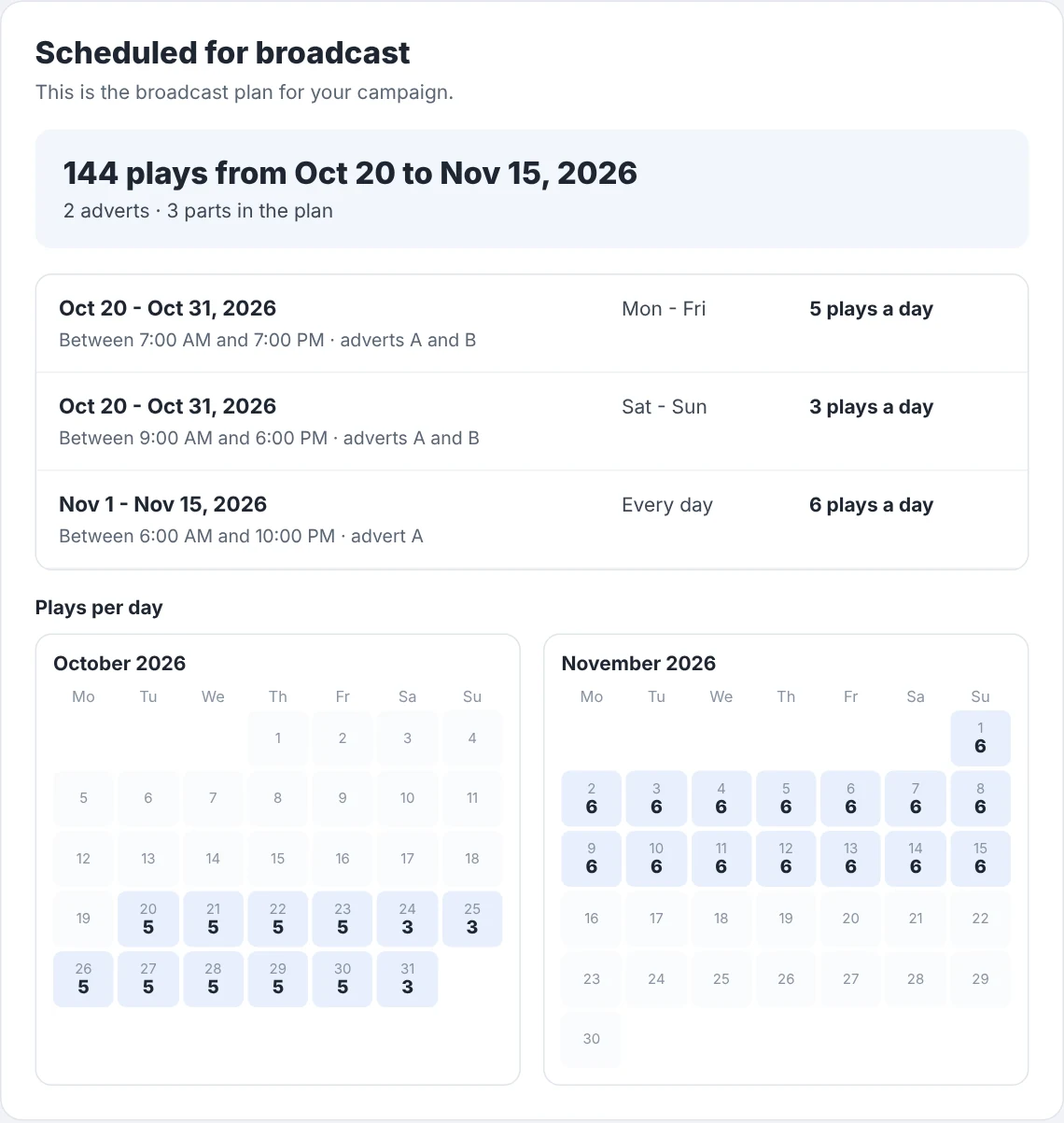
In the live report, segments become the broadcast plan, in the advertiser's own words.
The report shows dates, days, hours, plays a day and spots. When more than one segment makes up the same part of the deal, for example a day part and a night part, the report joins them in one row and shows the split as a detail.
5
What you send to advertisers
Need a pre-log? Here it is.
Send the short version of the live report. As soon as you enter the campaign, it shows the dates, the number of plays for every day and the plan of the campaign.
Advertisers ask for a pre-log because they want to know that their campaign is in, and how much of it airs. The live report answers both from the first minute. The number of plays per day comes straight from the campaign rules, so it does not change when AdMaster plans the schedule again.
What it does not show are exact times for the whole campaign. See why below.
The advertiser wants the schedule before the campaign starts. What do we send?
The live report with the broadcast plan, as a link, a PDF or both. You decide what else it shows.
Open the campaign and choose Actions › Live report settings. Every report includes the campaign details and status, the broadcast plan, the spots and the time the data was created. Then you choose what to add:
- Planned times. Exact times from the station schedule, as far ahead as the traffic log exists.
- Verified airings. Airings matched with your broadcast log.
- Link to live report in PDF. A QR code and a link to the live version, at the end of the PDF.
The defaults come from the Live report tab of the station. The choices apply to every live report of the campaign, also to links already sent.
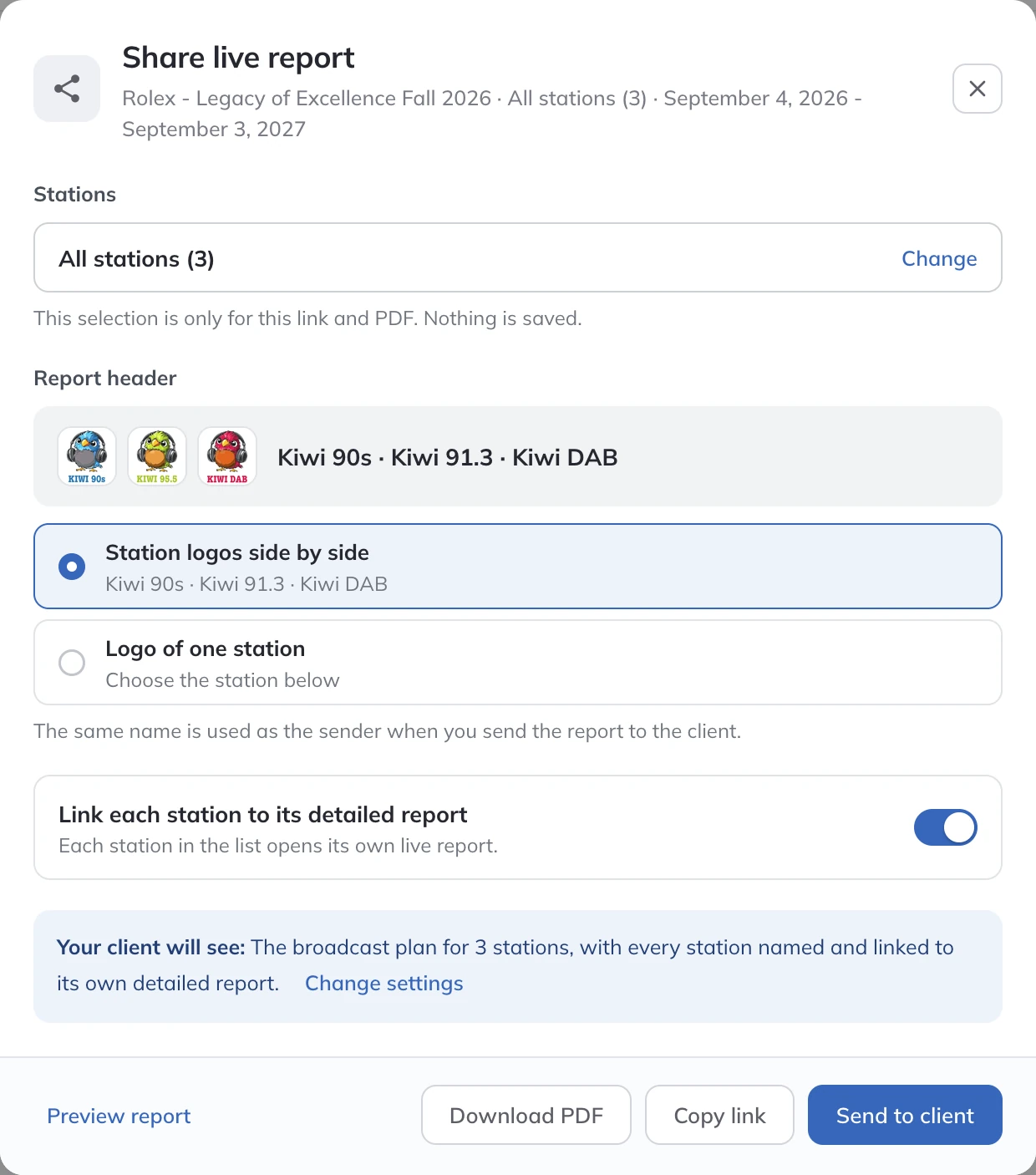
In Actions › Share live report, send the report to the advertiser straight from AdMaster, download the PDF or copy the link. Every report you send is saved in the campaign history, so you can always show that the advertiser was informed.
More than one station?
A report for several stations shows the broadcast plan and the list of stations. Planned times and verified airings exist for each station on its own, so you can link every station in the list to its own detailed report. Stations with different plans are grouped, up to three plans in one report. When the stations are in different time zones, all times are in each station's local time.
In the user manual: Live reportWatch: Live campaign page for your advertisers
Why exact times show only for the next days
Exact times exist only for the days your traffic log covers, today and up to two weeks ahead. A list of times for the whole campaign is not a technical limit. It is our decision.
AdMaster plans the schedule again after every change, for all campaigns. See how that works. A list of exact times for a campaign that runs six months is out of the question. Fixed times for one campaign quickly cut the chances of a good schedule for every campaign that comes after it, lower the quality of the whole schedule and make conflicts skyrocket.
A pre-log with approximate times is still a document you know is wrong, and a note saying that times may change does not fix it. Fixed times also make breaks predictable, and predictable breaks work less well for advertisers.
So in the live report, planned times always come with this note: exact times can change, your broadcast plan does not. If a time moves, another one takes its place, and the advertiser gets every play in the plan.
Verified, Pending, Needs verification and Planned
Every airing in the live report has one of four states. A state never claims more than the data shows.
- VerifiedThe spot was found in your broadcast log, the record your playout keeps of everything that goes on air.
- PendingThe time has passed, but the broadcast log for that time has not arrived yet. It clears on its own as soon as the log arrives.
- Needs verificationThe broadcast log covers that time, but the spot was not found in it. Someone at the station should check it.
- PlannedA time that is still ahead.
Needs verification is orange, not red. AdMaster only knows that it did not find the spot, not that the spot did not air. The reason can be as simple as a lost network connection at that time.
The report always shows how far verification goes, as "Airings verified up to" a date and time. When the newest broadcast log is more than two hours old, the report says that verification may arrive with a delay. A station that never sends a broadcast log shows no verified airings, and the report says the campaign is scheduled, not that it is on air.
When a spot does not air
AdMaster never replaces a missed airing on its own. A person at the station decides.
The right answer depends on the free time in your breaks, the policy of your station and the kind of deal you have with the advertiser. A yearly flat-fee contract may not need a missed airing replaced the same day. A Friday sale at lower prices needs its spot on air that Friday, not next Friday. That decision takes a person who knows the advertisers, not a technical search for free slots.
So AdMaster shows you what needs attention: spots it could not schedule within the limits of the campaign or the breaks, and airings it could not find in the broadcast log.
To replace an airing, change the campaign or add the play in the Traffic Log Editor. Either way, it appears in the live report as a new planned airing, then as a verified one. Plays added by hand in the Traffic Log Editor have no price, do not appear on the invoice and are lost when AdMaster creates that day's traffic log again.
Was a station off air for hours? Then many campaigns lost plays at once, and your AI assistant replaces them in one message. It finds every campaign with plays in those hours, adds a new part to each one, in the same hours, with as many plays as were missed, and shows you everything before it is saved. Beta. AI can make mistakes. Always have a person check everything your AI assistant does.
Commercials stopped airing altogether? First check the AdMaster Desktop Client app, then run the Five points verification in the user manual.
In the user manual: Five points verificationIn the user manual: Replace missed playsCommercials stopped airing
How to present the live report to advertisers
Not "we can't send you a detailed schedule anymore", but "you get live tracking, with data straight from the system that builds the schedule".
The broadcast plan is your agreement with the advertiser, in their words. Planned times show what is coming in the next days. Verified airings come from your broadcast log, not from someone typing them in. The advertiser opens one link, on a phone or a computer, with no account, and follows the campaign as it airs. That is worth more than a printed list of times that change before you even send it.
6
From AdMaster to your playout
Traffic logs and spots reach your playout in one of two ways: automatically, through the AdMaster Desktop Client app, or by hand, when you deliver the files yourself. Both work with every station, from one frequency to a network with its own infrastructure.
The AdMaster Desktop Client app: a tiny Dropbox
The app moves files between AdMaster and your playout computer. It does not schedule anything.
AdMaster runs in the cloud, and your playout runs on a computer at the station. The AdMaster Desktop Client app connects the two, with two jobs:
- Delivery. It downloads new traffic logs and spots to the playout computer as soon as they change.
- Broadcast log. It sends the broadcast log your playout writes back to AdMaster, several times an hour, for automatic reconciliation.
You don't need the app to enter campaigns, so install it last, when you are ready to go on air with AdMaster. It runs on Windows. A Mac or Linux playout can get the files from it through a shared network folder, or a file-sharing service that works on both computers.
Don't want to install anything on the playout computer? Deliver the traffic logs and spots yourself, and upload the broadcast log by hand for reconciliation. See how.
If the app does not check in with AdMaster in time, AdMaster can email you. Turn this on under the bell icon, in Notifications, Settings.
Delivering files yourself
You can download traffic logs and spots by hand and deliver them yourself. Then getting them to the playout on time is up to you.
This suits stations that can't or won't install anything on the playout computer, and networks that move files through their own infrastructure. On the Stations page, the menu next to each station has Manual Download of Traffic Logs and Manual Download of Spots. Put the files in the folders your playout reads.
Manual delivery has a price. AdMaster can't know whether the files reached the playout, or when. And without the AdMaster Desktop Client app there is no automatic reconciliation: you upload the broadcast log by hand, one day at a time, in the station's Reconciliation settings, and airings are verified only up to the last log you uploaded.
For most stations, we recommend the app. AdMaster was built so that no one has to move files by hand.
Changes air from the next hour
A change in AdMaster reaches the air from the next hour at the earliest, never in the hour already on air.
Technically, we can deliver an updated traffic log and new spots right away. But no one can guarantee that a playout notices the new version at once and loads it. So AdMaster leaves the current hour alone. If your playout loads the traffic log every hour, a campaign you enter now airs in the very next hour.
Automatic or manual traffic logs
Automatic is the default: AdMaster creates the traffic log and delivers it on its own. Manual is for stations that want to send changes to air when they decide, for example once a day or once a week.
Choose in Settings, under Traffic Log Generation:
- Create Traffic Log automatically. AdMaster creates the traffic log files regularly and delivers them to the playout computer. You only schedule campaigns, and every change reaches your playout on its own.
- Create Traffic Log for the specified period of time. AdMaster creates nothing on its own. You create the traffic log yourself, when you decide, for the period you choose.
In manual mode, creating the traffic log and sending it to the playout are two separate steps. On the Stations page, each station has a button for each step:
1
Apply changes and Create Traffic Log
AdMaster plans the schedule with your latest campaign changes. Check the breaks in the Traffic Log Editor if you want to.
2
Send Traffic Log to Broadcast
The traffic log goes to the playout computer through the AdMaster Desktop Client app. Or download it and deliver it yourself.
In manual mode, a campaign change reaches the playout only after you create and send the traffic log again. A campaign you enter today but forget to send does not air.
Checking what aired
AdMaster compares the traffic log with the broadcast log your playout writes, spot by spot.
Your playout keeps a record of everything that goes on air. AdMaster finds each scheduled spot in that record, by spot name, file name, cart number or unique play ID, and marks it with a green check. With the AdMaster Desktop Client app this runs automatically, and in real time when your playout updates its broadcast log live. Without the app, you upload the broadcast log by hand.