Reconciliation

Know what aired, spot by spot.

Point AdMaster to the broadcast log your playout writes. AdMaster compares it with the schedule, confirms every spot that aired and shows you every spot that did not, before your client calls you.

60 days free, with no credit card. Put real spots on air from day one.
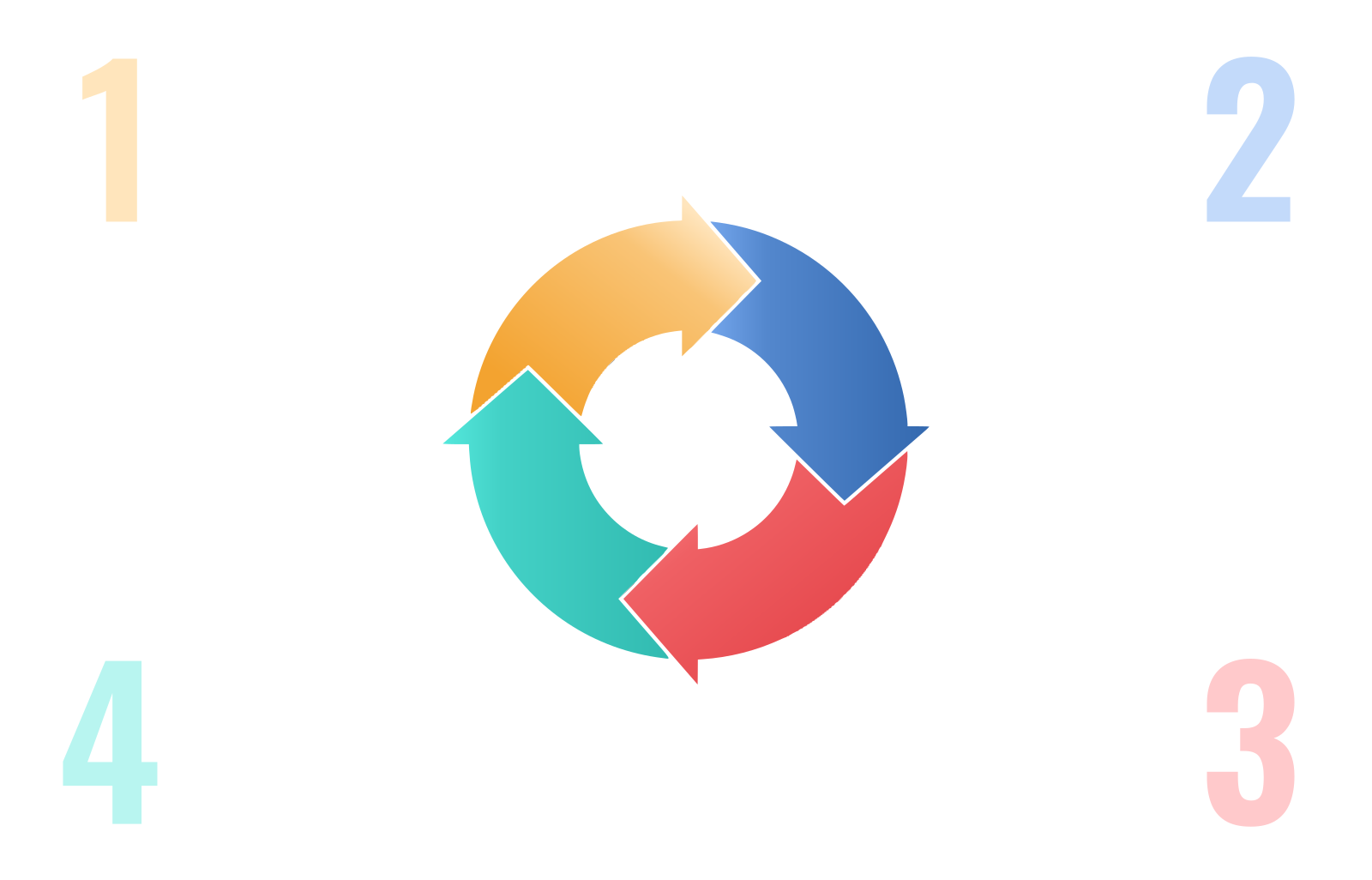
The reconciliation loop in four steps: schedule, traffic log, on air, broadcast log, and back to the schedule

01Schedule

AdMaster builds the schedule.

02Traffic log

The log and the spots go to your playout.

03On air

Your playout plays the spots and writes the broadcast log.

04Broadcast log

AdMaster compares what aired with the schedule.

The schedule says what should air.
The broadcast log says what did.

AdMaster reads both and compares them, spot by spot. A green check means your playout confirmed the spot. Every spot without one waits for you in the Traffic Log Editor, so you can make it good before the campaign ends, and every broadcast report rests on a record from your playout.

Before you start

What AdMaster needs from your playout:

Reconciliation works with playouts that write a broadcast log, also called an as-run or as-played log, with these three things in it.

1

One line for every spot

The log must list every spot that played, not only the start of the break.

2

The spot name, file name or cart number

Each line must name the spot the same way AdMaster does. AdMaster matches the exact text and never guesses. Some playouts write the title stored inside the audio file, not the file name. Make the two the same, or change the spot names in AdMaster to match the log.

3

The time, with seconds

Each line needs the time the spot started, in 24-hour format with seconds, such as 14:15:07. AdMaster can't read times like 2:15 PM or 14:15.

Not sure what your playout writes?

Open one of its broadcast log files in Notepad and look at a few lines. Or send the file to support@admaster.info, and we tell you what to set. Tell us which playout you use, and we tell you what to expect.

Two ways to reconcile

Automatic or manual

In automatic mode, the AdMaster Desktop Client app on your playout computer watches the folder where your playout writes its broadcast log, and sends the log to AdMaster several times per hour. After the setup, you do nothing.

In manual mode, you upload the broadcast log yourself, for any date in the past. Use it when your playout writes its log once a day, or only when you ask for it.

Automatic

  • The AdMaster Desktop Client app sends the log several times per hour
  • Results within minutes, if your playout writes its log as it plays
  • An email warning when spots don't match as expected
  • Today's log, and yesterday's log until 4 AM station time
  • Verified airings in your advertisers' live reports, within minutes

Manual

  • Upload a log for any date in the past
  • One day, one file: pick the date, then the log for that date
  • The log can come from any computer, a USB drive or cloud storage
  • Results usually within a minute of the upload

In both modes

  • Spots matched by spot name, file name or cart number
  • Green checks and aired times in the Traffic Log Editor
  • An Insights report of every order that did not air in full
  • Broadcast reports for your advertisers, from the same record

Real time depends on your playout.

AdMaster sees a spot as soon as your playout writes it to the broadcast log. If your playout writes every line as it plays, you see the results within minutes. If it writes the log once an hour, the earliest you see a spot is the next hour.

If your playout writes the log once a day, yesterday's log must reach AdMaster before 4 AM station time. Set it to write the log shortly after midnight, with the AdMaster Desktop Client app running. Or upload the log by hand.

Results

Every spot, accounted for.

You see the results in the Traffic Log Editor, and your advertisers see the verified airings in their live report, if you want them to.

A green check for every spot that aired

Each spot your playout confirmed gets a green check and the time it actually aired. A red X means AdMaster has no record of that spot yet.

Every order that fell short

Create an Insights report of your campaigns and sort it by plays delivered. You see at once which orders did not air in full, without opening them one by one.

A warning in your inbox

In automatic mode, AdMaster emails you when spots on a station don't match as expected. Open the Traffic Log Editor for that day to see which ones. You can turn the email off in your notification settings.

Confirm a spot by hand

You know a spot aired, but the log missed it? Turn on manual reconciliation in the Traffic Log Editor and confirm the spot yourself.

Replace missed plays

AdMaster never replaces a missed spot on its own: someone at your station decides. The easiest way is to ask your AI assistant: one message replaces the missed plays in every campaign (beta). By hand, add a new part to the campaign, with the number of plays and the days you want.

Proof for your advertisers

Send an advertiser the live report of the campaign, with the broadcast plan and every verified airing. Broadcast reports, also called affidavits or proof of performance, list every play in a period. Both work in automatic and manual mode. How reporting works

Setup

Set it up in five steps.

Automatic reconciliation takes a few minutes to set up: four steps in AdMaster, one on your playout computer.

1

Set the break times

In Stations, on the Commercial Breaks tab of your station, set the minute and second each break is expected to start, as exactly as you can. AdMaster looks for the spots of each break in time windows around that moment.

2

Turn on reconciliation

On the Reconciliation tab of your station, turn on Broadcast Log Reconciliation.

3

Choose how spots are matched

Choose the Search term: spot name, file name, cart number or unique play ID, the one your playout writes in its log. If your playout writes cart numbers, use them. They are the most exact.

4

Point the AdMaster Desktop Client app to the log

On the playout computer, open the AdMaster Desktop Client app and choose the folder where your playout writes its broadcast log. More than one log in the folder, such as music, commercials and errors? Enter a word that only the right file name contains.

5

Check the first results

Wait 15 to 20 minutes, then open the Traffic Log Editor. The spots that aired now have a green check and the time they aired.

Manual mode?

Do steps 1 to 3. Then click Upload reconciliation file on the same tab. Pick the dates, then the log file, and upload.

From our support team

No green check? Check these six things.

How spots are matched

Your log shows file names, but AdMaster looks for cart numbers? Nothing matches. Choose what your playout writes. AdMaster matches the exact text, so "SPOT_30.mp3" and "SPOT_30" are two different names. Your playout writes a line for a spot that failed, such as "File not found"? Enter that text under Skip log lines with, so such a line never confirms a play.

The folder

A folder one level off gives no error and no results. Check the exact folder where your playout writes its log. This setting is in the AdMaster Desktop Client app on the playout computer, not in AdMaster in your web browser.

The right log file

Your playout writes music, commercials and errors to separate files in one folder? Tell the AdMaster Desktop Client app which file to read: enter a word that only that file name contains. Log files named by date? Set Date in log file name under Advanced settings, so each log is saved under its own date.

The break times

AdMaster looks for each spot in time windows around the expected start of its break: first from 5 minutes before to 10 minutes after, then from 15 before to 20 after. A break that airs at 23:01 instead of 23:20 falls outside both. Set the real start times, or widen the search windows under Advanced settings on the Reconciliation tab of your station.

The time format

Times without seconds, or with AM and PM, can't be read. Set your playout to write times like 14:15:07.

When the log arrives

Automatic mode reads today's log, and yesterday's until 4 AM station time. A log written days later is never read automatically. Upload it by hand: any date in the past works.

Still no green checks?

Send one day of your broadcast log and a screenshot of the Traffic Log Editor for that day to support@admaster.info. We check it and tell you what to change.

Reconciliation questions

It is the check of what aired against what was scheduled. Your playout writes a broadcast log, also called an as-run or as-played log. AdMaster compares it with the traffic log it sent to your playout, spot by spot, and marks every spot that aired.

It works when your playout writes a broadcast log with one line for every spot, with the spot name, file name or cart number, and the time with seconds. The check runs in real time only if your playout writes its log as it plays. Tell us which playout you use, and we tell you what to expect.

For automatic reconciliation, yes. The AdMaster Desktop Client app sends the broadcast log from your playout computer to AdMaster. For manual reconciliation, no. You upload the log yourself, in your web browser.

Not always. A red X means AdMaster has no record of that spot yet. The log may not have arrived, the break may have aired far from its expected time, or the spot may have a different name in the log. Check the six things above. If you know the spot aired, confirm it by hand.

It tells you that some spots on one of your stations did not match as expected. It does not list the spots. Open the Traffic Log Editor for that day to see them. You can turn the email off in Notifications, Notification settings. The results stay in the Traffic Log Editor.

Yes, for any date. Pick one day and the log file for that same day, then upload. Don't pick more than one day with one file: AdMaster would apply the same log to every day you picked.

AdMaster never does it on its own: someone at your station decides. The easiest way is to ask your AI assistant to replace them. It adds a new part to every campaign that lost plays, in the same hours, with as many plays as were missed, and you check everything before it is saved. AI can make mistakes. Always have a person check everything your AI assistant does. To do it by hand, add new parts to the campaigns and schedule the missed plays exactly the way you want them. If more than one play was missed, create a part with one number of plays for the whole part, and set the number of days over which the plays should come back. Don't worry about separation: if the only way to replace the plays is to air the spot more than once in an hour, AdMaster puts them in different breaks on its own.

Yes, if you want them to. Send the advertiser the live report of the campaign, as a private link or a PDF. It shows the broadcast plan and every airing verified in your broadcast log, within minutes if your playout writes its log as it plays. In manual mode, the report shows the time up to which airings are verified, so the advertiser knows how current it is. How reporting works.

No. Reconciliation only confirms what went on air. Add items such as website ads, spot production or sponsorship fees to the invoice by hand.

Yes. It works the same way for radio and TV, and for every station in a network. Each station is checked against its own broadcast log.

Scheduled. Aired. Checked.

Start the 60-day free trial, with no credit card. Put real spots on air from day one.

Questions?

support@admaster.info

Live chat on working days, 9:00 to 21:00 CET, when an agent is available.